
If you lost permissions to a GPO, obviously you cannot edit the GPO in Group Policy Management Console (GPMC). You would get this error: This Group Policy object (GPO) is inaccessible because you do not have the read-level permission on it.
Don’t you worry. There is an easy fix as long as you are a domain admin.
- Open ADSIEdit.msc console
- Right click on ADSI Edit and select “Connect to…”. Choose “Default Naming Context” and click OK.
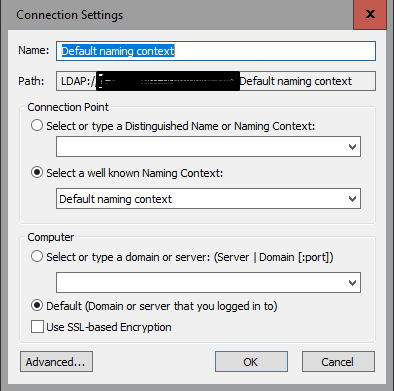
- Expland to ADSI Edit >>> Default Naming Context (domain.com) >>> DC=company,DC=com >>> System >>> Policies
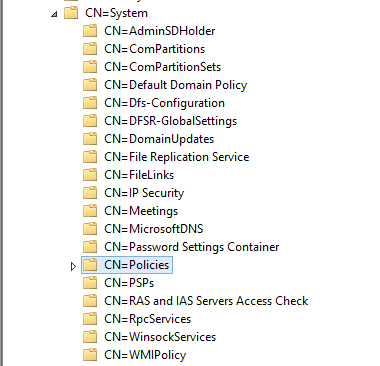
- Find the GUID of the GPO you lost access in Group Policy Management Console. Select the GUID of the Policy under CN=Polices OU.
- Right click on Policy and choose Properties.
- Select Security Tab and Click Advanced Button.
- Take ownership of the policy by changing the owner to yourself (or better to Domain Admins). Close the properites dialog box.
- Right click on the Policy and open Properties again.
- Go to Security Tab. I would suggest to add permissions by copying the default permissions from other policy.
- You may close the ADSI Edit console.
That’s all. After permissioning try accessing the GPO in GPMC.
 Anand, the Architect
Excellent! Exactly the solution I was looking for. Thank you!