
If multiple users are using a Shared Mailbox in their Outlook and they are sending/replying emails as the shared mailbox’s email address, they might have noticed all the sent emails as shared mailbox is stored in user mailbox’s Sent Items folder.
This is the default behavior of Outlook. Why Microsoft? How will users know who sent/replied/forwarded emails as Shared Mailbox? It’s kinda bad bevavior. There is a fix provided by Microsoft in Microsoft 365 (not in OnPrem Exchange).
Here is how you enable to store sent emails with SendAs or SendOnBehalf permission to store in Shared Mailbox’s Sent items folder. Use Set-Mailbox command to enable this setting. Here are the examples (for SendAs and SendonBehalf emails).
Set-Mailbox -Identity test-shared -MessageCopyForSentAsEnabled:$true
Set-Mailbox -Identity test-shared -MessageCopyForSendOnBehalfEnabled:$true
If you are old-school and hate the shell, you can do it in Microsoft 365 admin center.
- Go to Microsoft 365 admin center: https://admin.microsoft.com
- Expand to “Teams & groups” >>> “Shared mailboxes
- Find your Shared mailbox (search is the best way, Scrolling is slow)
- Click to select the Shared mailbox to open Properties
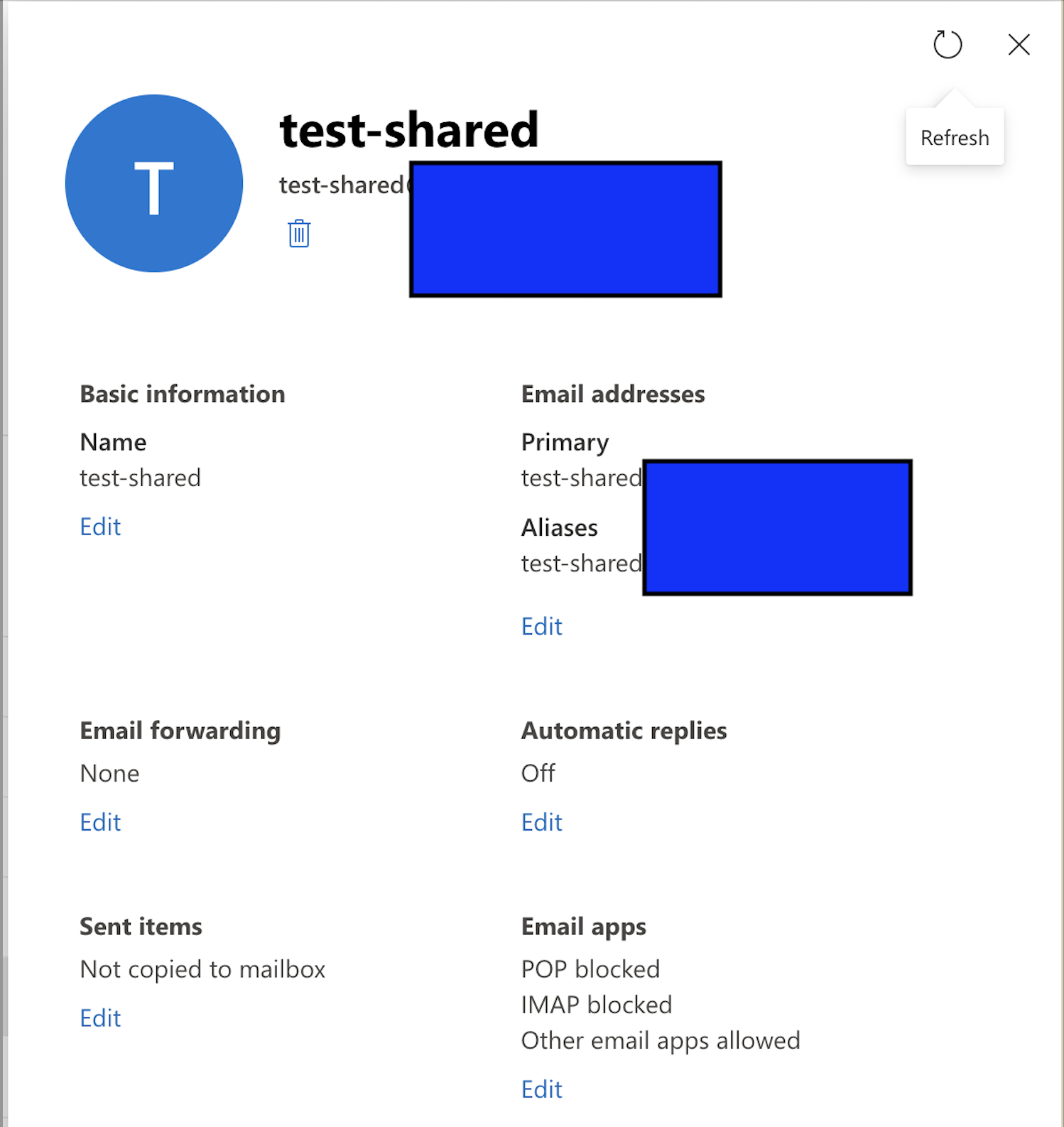
- Under “Sent Items” section, click “Edit” link
- First check box is for “SendAs” permission and second one is for “Send OnBehalf” permission. Enable whichever you want.

- Click “Save” button.
That’s it. It will take some time to take effect After 15 mins, I would recommnd close and reopen the Outlook.
 Anand, the Architect